Your first program
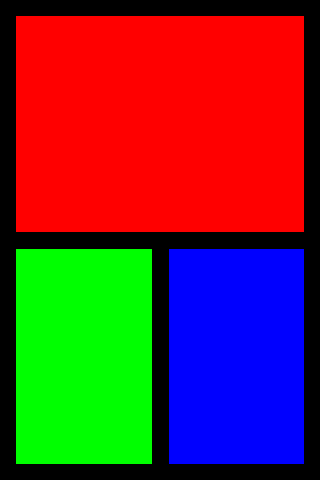
This program draws three rectangles. It runs unchanged on a desktop and on a board, because everything that differs between them is in the board config.
from board_config import display_drv

w, h = display_drv.width, display_drv.height
print("display:", w, "x", h)

display_drv.fill(0x0000)
display_drv.fill_rect(16, 16, w - 32, h // 2 - 24, 0xF800)
display_drv.fill_rect(16, h // 2 + 8, w // 2 - 24, h // 2 - 24, 0x07E0)
display_drv.fill_rect(w // 2 + 8, h // 2 + 8, w // 2 - 24, h // 2 - 24, 0x001F)
display_drv.show()
Save it as hello.py and run it with python hello.py on a desktop, or copy
it to a board and run it there. On a desktop it prints:
display: 320 x 480
and opens a window with this in it:
What each line does
from board_config import display_drv loads the board config. On a desktop
that’s the one omnipython-desktop installed, which opens a window; on a board
it’s the one you installed for that board, which sets up its display bus and
panel. Either way you get display_drv, the display to draw on.
display_drv.width and display_drv.height are the screen’s size in pixels.
The program works out its rectangles from them, so it fits any screen.
fill paints the whole screen one color, and fill_rect(x, y, w, h, color)
paints a rectangle. Colors are 16-bit RGB565: 0xF800 is red, 0x07E0 green,
0x001F blue.
show() puts what you drew on the screen. A desktop window or a
framebuffer-backed panel needs it; on a panel that draws as you go it does
nothing, so call it anyway and the program works on both.
Next
Bring up a board when yours has no board config yet.
Displays for everything
display_drvcan do.Write an application to add touch, keys and a main loop.