Your first program
This program puts a label and a button on the screen and counts clicks. It runs unchanged on a desktop and on a board, because everything that differs between them is in the board config.
import board_config
import appdev
import pdwidgets as pd

app = appdev.App(board_config)
display = pd.Display(board_config.display_drv, app)
screen = pd.Screen(display, bg=0x0000)

label = pd.Label(screen, value="Taps: 0", align=pd.ALIGN.TOP, y=40, bg=screen.bg)
button = pd.Button(screen, label="Tap me", align=pd.ALIGN.CENTER, w=160, h=50)
taps = 0

def on_tap(sender, event):
    global taps
    taps += 1
    label.value = f"Taps: {taps}"
    print(label.value)

button.add_event_cb(pd.events.MOUSEBUTTONUP, on_tap)
app.run()
Save it as hello.py and run it with python hello.py on a desktop, or copy
it to a board and run it there. It opens a window, and each click on the
button prints a line:
Taps: 1
Taps: 2
Taps: 3
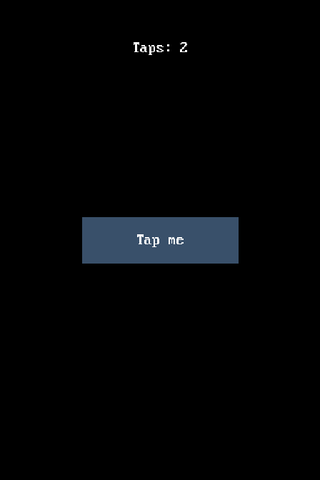
After three clicks the window looks like this:
What each part does
appdev.App(board_config) is the application. It reads the board config’s
display and input devices and runs the loop that polls them.
pd.Display(board_config.display_drv, app) joins a display driver to the app.
It routes input to widgets and draws the ones that changed. pd.Screen is one
full-display page, and every widget you create takes its parent as the first
argument.
pd.Label shows text and pd.Button is the clickable control. A label’s text
is value= and a button’s is label=; neither takes text=. A widget’s
align says which spot in its parent it hangs from, and x and y move it
from that spot. Label and Button differ here: a label aligns to the center
unless you say otherwise, so the label above asks for ALIGN.TOP. See
Lay out widgets.
The label gets bg=screen.bg so that when its text changes, the old text is
painted over. Without a background a label draws on top of what was there, and
the digits pile up.
add_event_cb(event_type, callback) calls callback(sender, event) when the
widget gets that event. MOUSEBUTTONUP fires when a click or a touch lifts off
the button. Respond to input covers the rest.
app.run() blocks until the app quits, delivering timers and input as it
goes. It’s optional where the host already owns a loop that keeps the program
running, such as a REPL started with -i, a browser page or a notebook, and
there it returns at once.
Next
Lay out widgets so a screen fits any panel.
Respond to input for taps, keys and encoders.
Theme an app to change its colors.
Widgets lists all 49 widgets.